
The power of video is now even more impactful with personalised, on-brand content.
Our Video Generator is an AI-driven tool that lets you create custom videos from scratch - simply select a presenter, add your script, and you're ready to go.
Getting Started
-
Navigate to a document, and select 'Design' for the version you wish to work on.
-
Select the ‘Interactivity’ tab at the top of the page.
-
Select the ‘Media’ module type from the ‘Add Interactivity' palette.
-
Select the ‘Generate a New Video’ button and choose how you would like to save your video:
-
-
Version Resource – the video will be available to use in this version only.
-
Document Resource - the video will be available to use in all versions of the document.
-
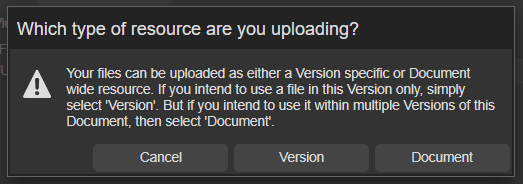
- Choose your preference and you can then begin generating your video!
Using the Video Generator
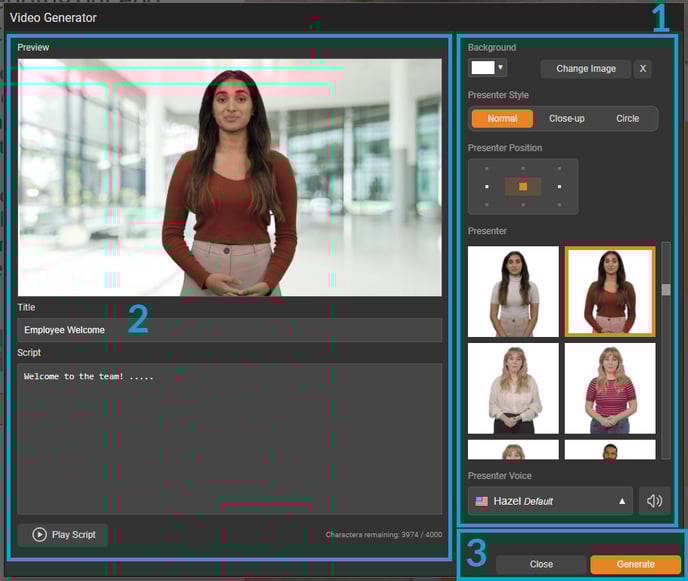
1 - Choose your video settings
Background
Choose a background colour or upload an image to display behind the presenter.
Images must be uploaded to your inventory, and Getty images must be checked out before use.
Presenter Style
Choose how your presenter will look, either 'Normal' (head, shoulders and arms), 'Close-Up' (head and shoulders only), or 'Circle' (the presenter will appear in a small circle).
Presenter Position
Choose where you would like your presenter to be positioned in the video.
The background image you choose can help guide the style and placement of your presenter.
For example, if your image includes a list of bullet points on the left with white space on the right, your presenter can be positioned to the right to keep everything visually balanced.
Presenter
Choose from a variety of presenters – this is who will be saying your script!
The choice of presenters will vary by service charge - contact your Customer Success Manager for more details.
Presenter Voice (available to Essentials Plus and Enterprise customers)
Each avatar has a default voice, but you can also choose a different one from the drop-down list. Use the sound icon to give it a listen first!
2 - Add your script and see it in action!
Title
Enter a title for your video – make sure it is short, clear and concise.
Script
Type in what you’d like your presenter to say - we’ll take care of the rest!
The script character limit will vary by service charge - Essentials allows up to 2,000 characters, whilst Essentials Plus and Enterprise allow up to 4,000.
Play Script
Listen to how your script sound and make any tweaks before generating.
Preview
A preview of the video settings will display here so you can check how it's looking!
3 - Generate your video!
Generate
When you are happy with your settings, select the 'Generate' button. Your video will start to generate and a pop-up box will display to notify you once it's ready!
Close
Select this option to close and exit the AI video generator - any changes won't be saved.
- Once your video has finished generating, it will be selected by default and ready to use in your video module.
- You can continue working on your document while a video is being generated - it won't take too long, but please allow enough time for processing.
- If you would like to use a different video, it's easy to switch! Simply edit the module, select another option from the ‘Video Resource’ drop-down list and save.
- Generated videos are licensed for use within PageTiger only - they must not be downloaded or used elsewhere.
Create a copy of an AI video
You may wish to duplicate an AI video so you have a copy of it, or want to make changes and create a new one. There are two ways to duplicate an AI video:
1 - Within a video module
- Edit the video module on your page.
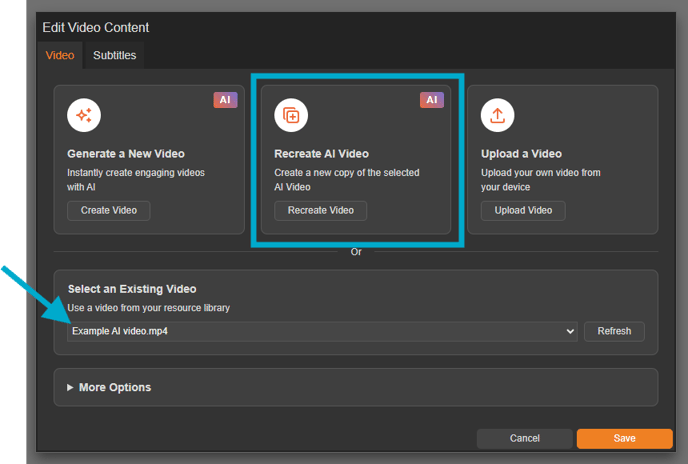
- Select the AI video file from the 'Select an Existing Video' field and save.
- Edit the video module again and select the 'Recreate Video' button.
- Choose if you want to save it as a Version or Document resource.
- The generator will then open, allowing you to make edits - such as updating the script or changing the avatar - before clicking 'Generate' to create a copy.
2 - Within your Resources Manager
- Open your Resources Manager.
- Select the 'Copy AI Resource' icon next to the AI video you want to duplicate.
- Choose if you want to save it as a Version or Document resource.
- The generator will then open, allowing you to make edits - such as updating the script or changing the avatar - before clicking 'Generate' to create a copy.

,