
Create more engaging and memorable content with an on-page video. A video can be a powerful asset to your content by not only grabbing your readers attention, but keeping it! They can make information easier to digest and retain, as well as making your document more interesting.
-
Maximum file size - 500MB.
-
Supported file types - webm, mkv, flv, ogv, ogg, avi, mov, wmv, mp4, mpg, mpeg, mpv, m2v, 3gp.
-
A video file can be uploaded directly to the module as a version resource - when using this option select the refresh icon to refresh the list of resources available.
-
A video file can also be uploaded to your Resources Manager - this is useful if you wish to upload more than one resource or use the file in all versions of a document.
-
Navigate to a document, and select 'Design' for the version you wish to work on.
-
Select the ‘Interactivity’ tab at the top of the page.
-
Select the ‘Media’ module type from the ‘Add Interactivity' palette.
-
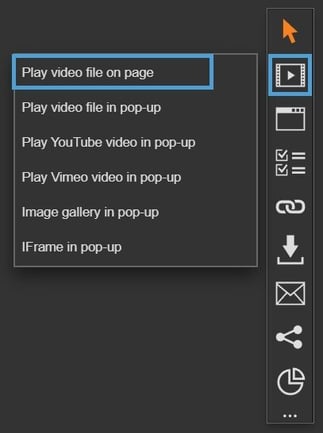
Choose the ‘Play video file on page’ option.
-
Click and drag out the area to add to your page - this is where the video will play on the page. The video size will be determined by the aspect ratio of the video file.
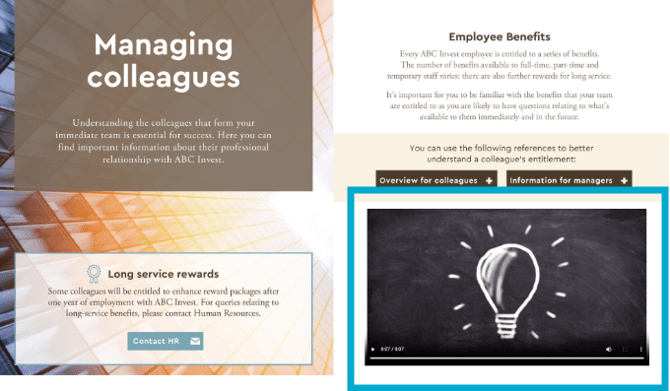
On-page videos are embedded, which means it is placed directly onto the page for visitors to view without having to view it in a pop-up box.
-
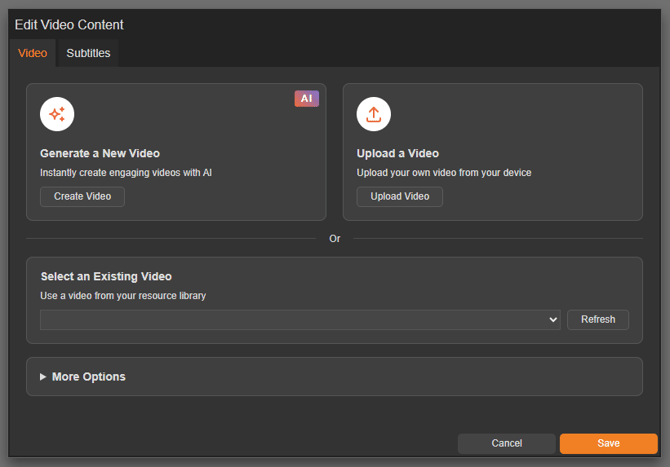
You can add a video in one of three ways, simply choose the option that works best for you:
- Generate a New Video
Choose a presenter, enter your script, and create a new video instantly using AI! - Upload a Video
Upload your own video as a version or document resource. Simply drag and drop or select the 'Add Files' button. - Select an Existing Video
Select a video that has been previously uploaded to your document or version.
Instantly create engaging videos with AI using our Video Generator.
Settings
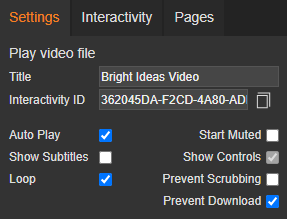
Click on a module already placed on your page to activate the Settings palette. This allows you to configure options like subtitles, video controls, and module description.
Name
The 'Name' field is set by default, but it's important to update it to something unique that reflects the interactivity - for example, 'Bright Ideas Video' as it will be shown in the Analytics of you document.
Descriptive names make it easier to identify the interactivity used in your document, which is particularly helpful if you're using lots of the same module type.
Description
The text entered here will display when a user hovers their cursor over a module. It is also read out by a screen reader when a document is viewed in accessible mode.
Auto Play
Select the 'Auto Play' checkbox to automatically play the video on the page.
Start Muted
Select the 'Start Muted' checkbox to play the video without sound - the visitor has control to enable sound.
Most modern browsers now implement strict policies around auto-playing and muting in order to provide greater control of playback to viewers. Although each browser will have its own policy, they generally follow similar guidelines - please be mindful of this, as there may be times that your chosen settings are not respected.
Show Controls
The Control Bar is set to display by default and allows the visitor to control video playback, such as volume, seeking, and pause/resume.
If your video is set to auto play, the control bar will always display and cannot be hidden. This is to ensure the visitor can control the playback.
Loop
This option is turned off by default, however, selecting it will play the video in a continuous loop. Looping a video can encourage your visitors to watch the video for longer, as they don't have to manually replay it.
Prevent Scrubbing
Select the 'Prevent Scrubbing' checkbox to prevent visitors from skipping ahead in the video. This is a great option if you would like the whole video to be watched.
Prevent Download
Select this option to hide the download option from the video, preventing the visitor from downloading/saving a copy. It's a useful feature if you don't want your video to be accessed outside of your document.
Show Subtitles
This option is ticked by default and ensures any subtitles added to your video are set to display.
Subtitles are essential for creating inclusive content - it provides content to people who are deaf and hard-of-hearing, as well as helping viewers who process written information better than audio. Subtitles can also be helpful for people consuming videos in a noisy environments.
Border Colour
A border adds a keyline around your on-page video, and can be used as a way to draw attention to your content. Use this field to specify the colour of the border.
Border Size
Use the 'Border Size' field to specify the width of the border around the video. Enter a numerical value to set the border width - the higher the value, the thicker the border.

Position X & Y
Adjust the position of where the video sits on the page. 'X' sets the position of the left edge and 'Y' sets the top edge.
Width & Height
Adjust the width and height of the area that the video will play in. The size is measured in pts.
Keep in mind that the video may not fill the entire space - this is because it will be sized proportionally to the ratio it was created in ensuring it is not distorted.