Find out whether your document has reached the right people with an Expected Visitor List (EVL). Upload a list of email addresses and apply a Reader Login or SSO security rule to your document. You’ll then be able to instantly see who has engaged with your content and who hasn’t, helping you keep your communications targeted and measurable.
-
Select ‘Documents’ from the main menu.
-
Select ‘Settings’ followed by ‘Expected Visitors’.
-
Select the ‘Add’ button.
-
Start by entering a name for the Expected Visitor List in the 'Name' field.
Make sure the name is clear and logical, so you know who is included in the EVL. For example - 'Sales Team' or 'London Branch'.
-
Select the 'Save' button to see more options.
-
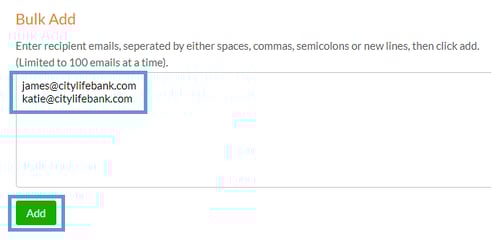
Paste the email addresses that you would like to add to the list using the 'Bulk Add' section, followed by 'Add'.
-
Select the ‘Save’ button to create and save the list.
You can also import a list of email addresses by selecting ‘Import’ > ‘Choose File’.
Other ways to use an EVL
-
Security Rule
Secure your content with precision by pairing an Expected Visitor List with a Reader Login or SSO security rule. When a visitor logs in, their email address is checked against the EVL - if it appears on the list, they’ll be granted access to the document, and, if not, access will be denied.

-
TigerMailer
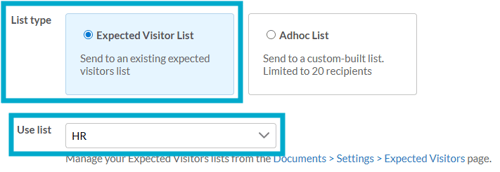
Choose who you want to send a mailing to by selecting an existing Expected Visitor List. This ensures your TigerMailer campaigns are delivered to the intended recipients, helping you keep communications targeted, relevant and easy to track.
- Courses
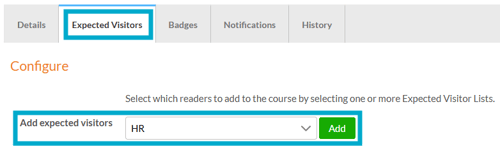
Choose who will be part of your course by selecting an Expected Visitor List. This enables you to enroll specific users on targeted courses and track their completion and progress.