Secure your content with precision by combining an Expected Visitor List (EVL) with a Reader Login, SSO or Employee Number security rule. When a user logs in, their email address will be compared to the EVL - those included will be allowed to view the document, any anyone not on the list will be denied access.
Scenario
Chris is preparing to send out the latest Management Bulletin to his management team. He sets up a new security rule using Reader Login along with an Expected Visitor List (EVL) containing each manager's email address. When recipients access the document, they’re prompted to log in - if their email matches the EVL, access is granted, otherwise, they'll be denied."
-
Select ‘Documents’ from the main menu.
-
Select ‘Settings’ followed by ‘Security Rules’.
-
Select the ‘Add’ button.
-
Start by entering a name for the Security Rule in the 'Details' field.
Choose a clear and descriptive name for your Security Rule so it’s easy to find when applying it to a document. For example: ‘Reader Login & Manager EVL'.
- Select either the Reader Login, Employee Number or SSO tab and choose the preferred login method.
-
Now select the 'Expected Visitors' tab.
-
Select an Expected Visitor List from the available drop-down list.
-
Select the 'Add' button.
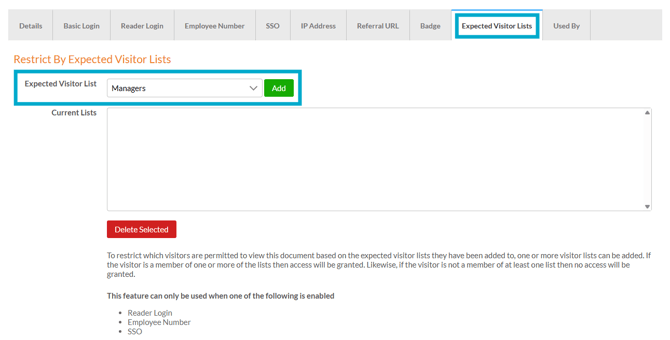
Before you can select a list here, make sure you have created at least one Expected Visitor List under Documents > Settings > Expected Visitors.
Adding more than one Expected Visitor List
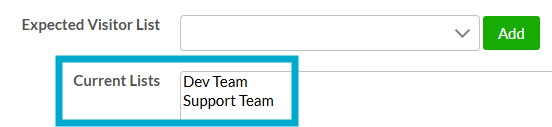
It's possible to apply multiple Expected Visitor Lists to a Security Rule. If the visitor is on one or more of the lists, they will be able to log in and view the Document.
Removing an Expected Visitor List
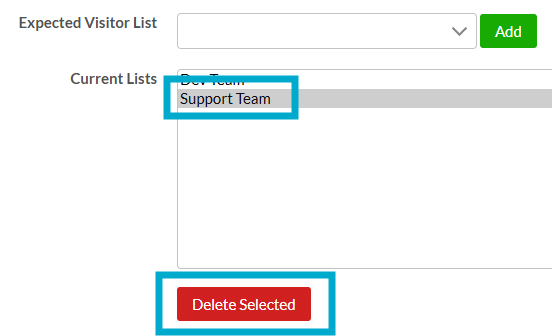
If you need to delete an Expected Visitor List from a Security Rule, select it from the 'Current List's field, followed by the 'Delete Selected' button.