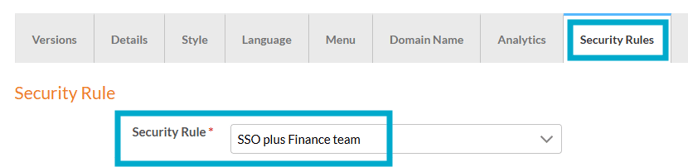
- PageTiger User Guide
- Single sign-on
- SSO - VIEW
SSO VIEW - using SSO plus EVL to secure PageTiger documents
It's possible to set up a new security rule using a combination of your organisations single sign-on alongside an Expected Visitor List (a list of email addresses).
This means only staff members who sign in using SSO and are included on the approved list can access your PageTiger document, providing an additional layer of security.
To use this option, please contact our Support team, so they can share your SSO configuration, which you'll need to set up a new security rule.
- Go to Documents > Settings > Security Rules.
- Add a new security rule.
- Enter a name into the 'Details' tab - For example: "SSO plus Finance team".
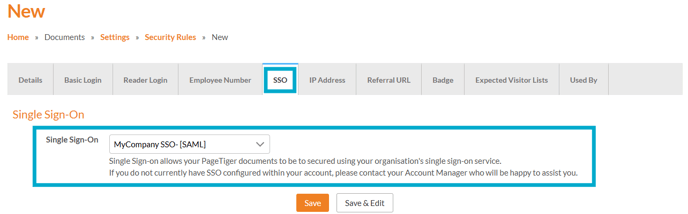
- Select the 'SSO' tab, and choose your organisations single sign-on configuration from the 'Single Sign-On' drop-down list.
- Now select the 'Expected Visitor Lists' tab and choose at least one Expected Visitor List from the 'Expected Visitor List'.
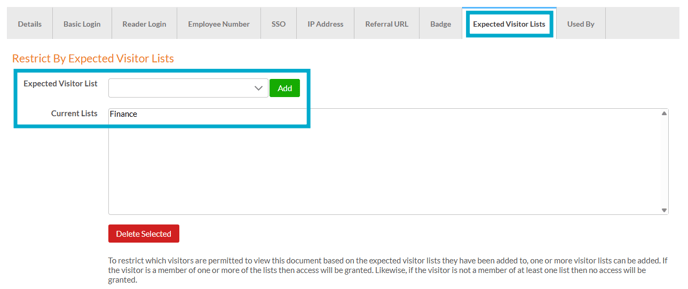
- Once you are happy with your selection, select the 'Save' button.
- The security rule will then be available to apply to your documents as needed.