
Assessments boost engagement, track learning progress, and reveal key areas for improvement, making them a valuable learning tool. They're also are a fun and interactive way to engage with your visitors!
- Navigate to a document, and select 'Design' for the version you wish to work on.
- Select the ‘Interactivity’ tab at the top of the page.
-
Select the ‘Assessment’ type from the ‘Add Interactivity' palette.
-
Select the ‘Assessment/Test’ option.

-
Click and drag out the area to add to your page - this is the area that the visitor will click to open the assessment or test.
-
A pop-up box will then open ready for you to begin adding questions, answers and results.
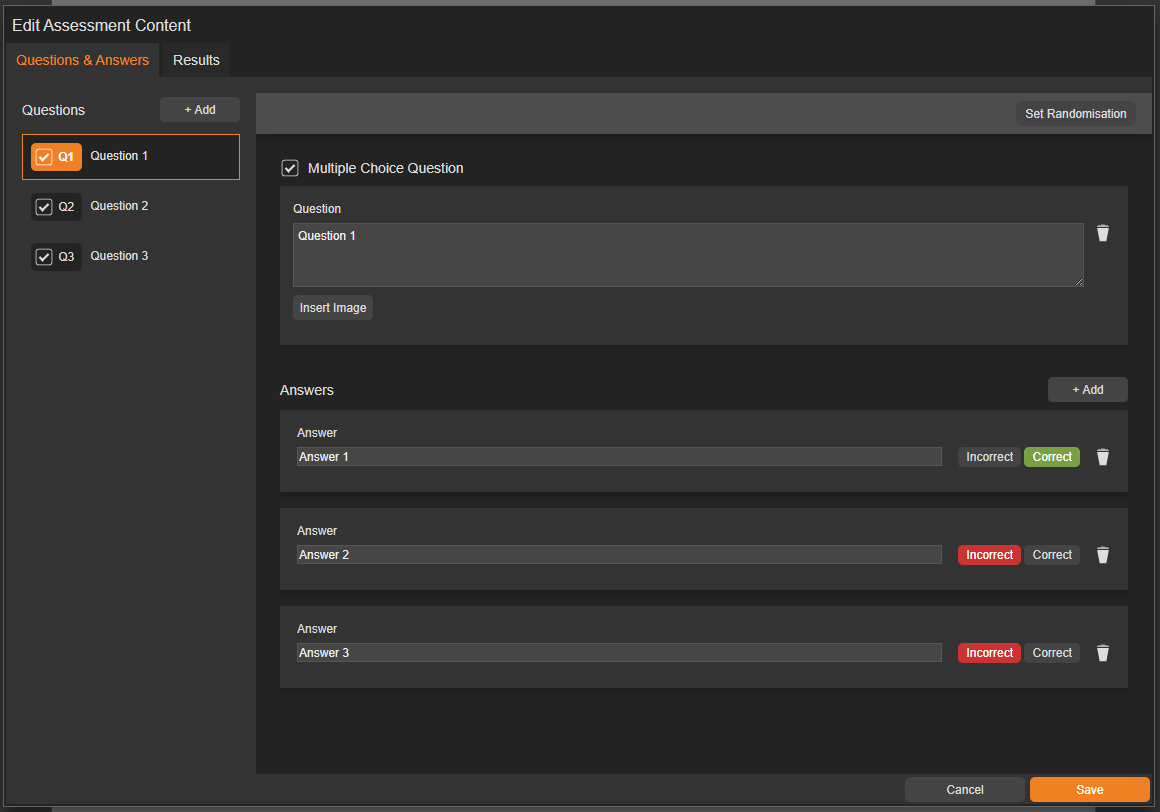
Use the 'Set Randomisation' button to randomise the order of the questions.

Available Question Types
| Multiple Choice | Allows users to pick one option from a list. Also known as a "radio button" or "select one" question. | Read more |
| Image Choice | Displays visual options, making it easy and engaging for visitors to select the image that best represents their answer. | Read more |
| True or False | Similar to a multiple choice question, but with only two options: True or False, making it quick and easy for visitors to answer. | Read more |
| Free Text | Allow visitors to provide open-ended responses in their own words. Ideal for gathering insights, feedback, or suggestions. Cannot be scored due to the subjective nature of the answers. | Read more |
Adding a Result
A 'Result' is a pop-up that displays once a visitor has submitted an assessment. More than one result can be added, and by default, there are two available - Pass and Fail.
Read more about results.
Settings
When creating an assessment, you'll have access to a range of settings. Some, like border colour and size, are simple visual adjustments, while others can affect how the module functions.
Read more about settings.