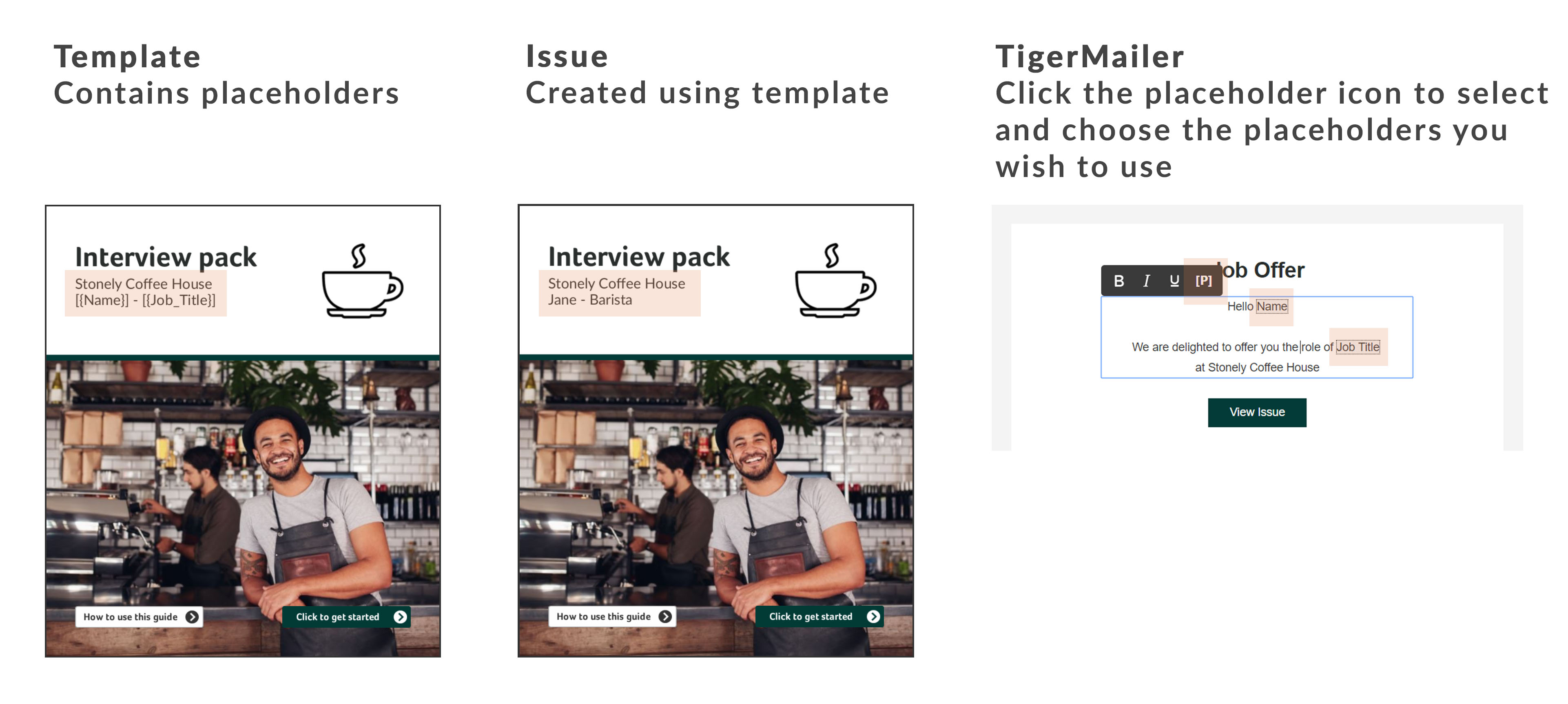
- PageTiger User Guide
- Distributing
- TigerMailer
Using placeholders
If you are using TigerMailer to distribute a version that was created from a template with placeholders, the same placeholders can be used in the mailing.
- In the 'Build Your Email' area, add a block of your choice.
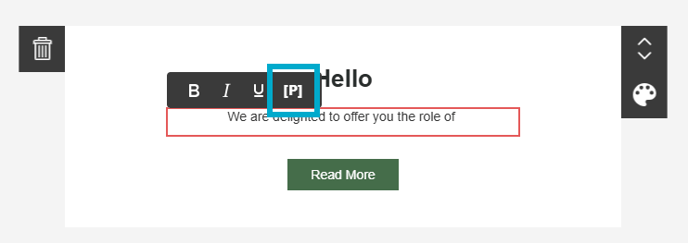
- Click into the block and select the placeholder icon.
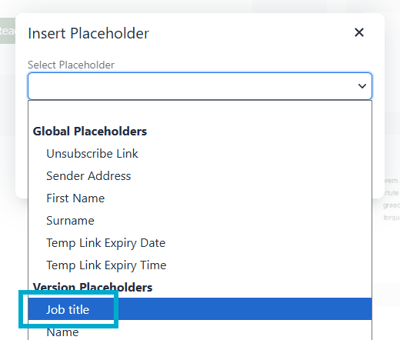
- Select the placeholder that you would like to add from the drop-down list.
- Your mailing design will look something like this -
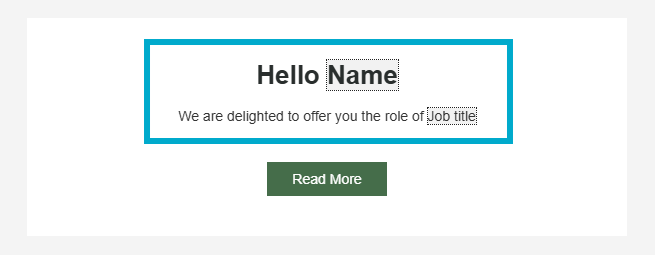
- When the mailing is sent, the placeholders will be populated with the text from the version that you are distributing.
Steve has created a job offer from a template that uses a 'Name' and 'Job Title' placeholders.
When the version was created 'Jane' was entered into the 'Name' field and 'Barista' was entered into the 'Job Title' placeholder.
When a new mailing is created for this version, the placeholders can be added, which will automatically populate with the text from the version.