- PageTiger User Guide
- Distributing
- TigerMailer
Creating a template
If you often send the same type of mailing (e.g., a Job Offer or Newsletter), saving it as a template can save you time.
Here’s how to set one up:- Create a new mailing as you normally would.
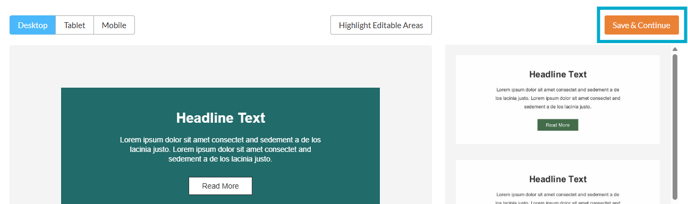
- Click the 'Save & Continue' button.
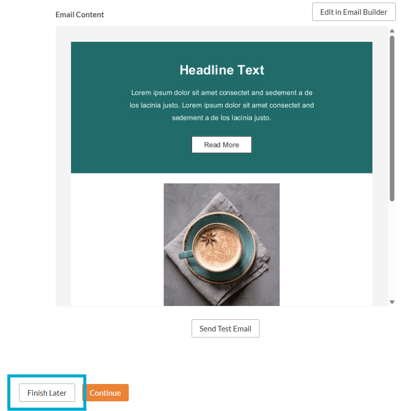
- Select the 'Finish Later' button (as we're not sending the mailing at this stage).
- Locate the mailing that you have just created, and select 'Manage Mailing', followed by 'Make Template'.

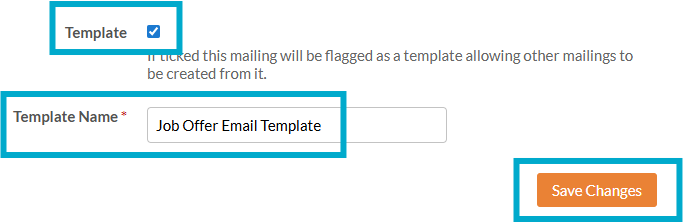
- Ensure 'Template' is ticked and enter a name for your template before selecting 'Save Changes'.
- The mailing will now have a small template icon to indicate that it is a template.

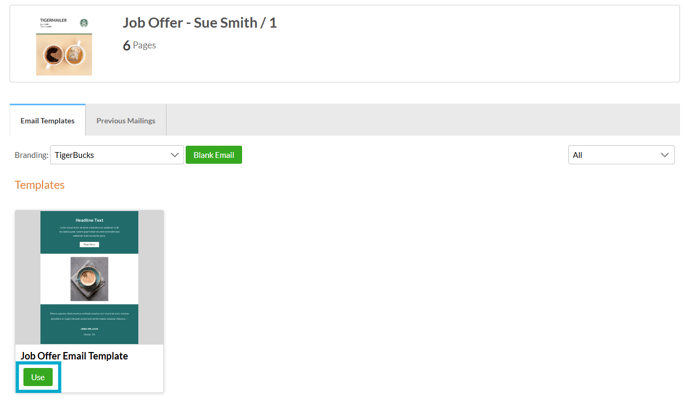
- The next time you select the 'TigerMailer' option for a version, the template will be available to use.