Available to Essentials Plus clients or as a bolt-on
Send real-time data from PageTiger to your application using a webhook notification!
Webhooks are valuable because they enable immediate communication between systems by automatically sending data when specific events occur - it's a faster, more efficient way to receive notifications when something has been done in your document.
A webhook is like a doorbell for web services - instead of constantly checking if something has changed, your application will get notified automatically when something happens.
Contact your Customer Success Manager to discuss this exciting new bolt-on!
Please note: this type of webhook tells another system when something happens as a result of a visitor interacting with a document - it cannot trigger actions such as document creation.
Overview
First, think about where you will use the webhook - for example, when a document is viewed or an Assessment is completed. Then get the receiving app ready to listen and add the webhook URL to PageTiger. Once done, a test can be sent to ensure the receiving app shows the test data it gets, such as name or email. You can then map the data and set up what the receiving app should do with it - like matching the email address to a user.
Getting Started
- Set up a webhook URL (a specific HTTP POST URL on your server).
Your IT team are usually responsible for building and configuring webhooks.
- Log into your PageTiger account.
- Select 'Documents' from the main menu, followed by 'Settings'.
- Choose the 'Notifications' options.
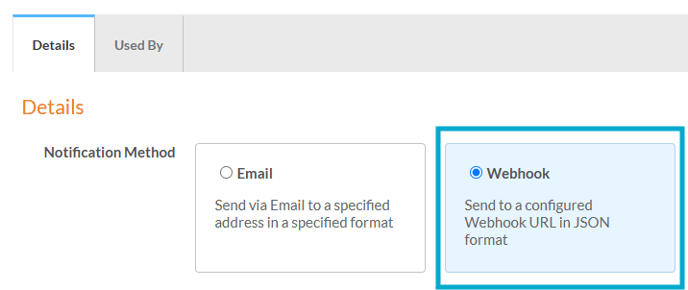
- Select 'Webhook' as the notification method.
- Enter a name for the notification, for example 'Job Offer - Document View'.
- Paste your webhook URL into the 'Webhook URL' field.
- Ensure the 'Enabled' checkbox remains ticked.
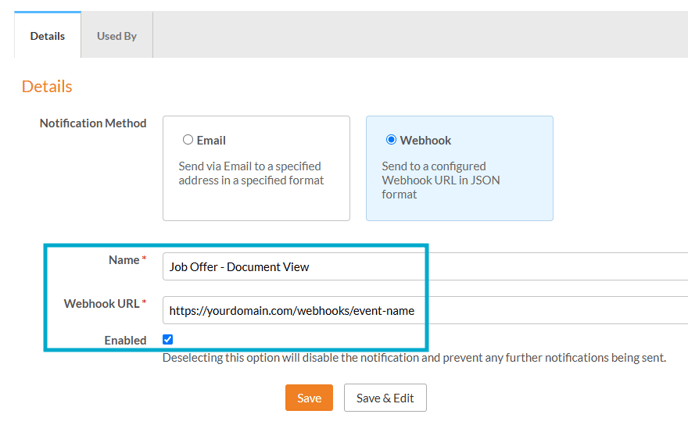
- Once done, save your notification.
- In the 'Webhook Test' pop-up, choose the Notification Type and select the 'Send' button.
- Check your logs and confirm that the webhook was received successfully.
- You can then choose which fields you wish to map from the webhook to your platform.
- When you are happy with your webhook notification, it is ready to apply!
Example
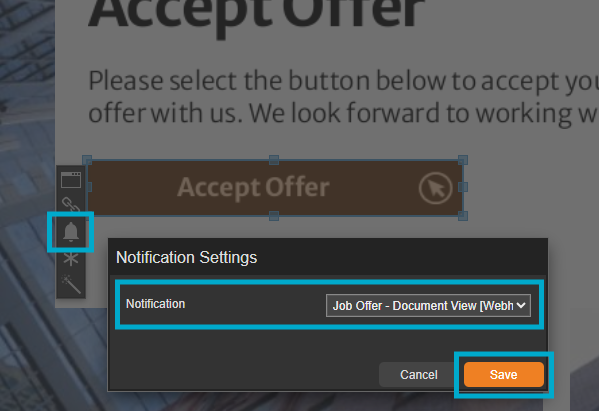
Steve has created a new webhook notification - he has applied the notification to a module within a Job Offer pack that he sends to Clare, a potential new hire.
When Clare selects the module and accepts her job offer, the webhook notification will fire instantly and send a real-time notification to Steve's application.