
COMING SOON
Once an LTI 1.3 connection has been successfully set up between your LMS platform and PageTiger, you can start building your course. From there, you will have the option to add a new activity and choose which PageTiger assessment you would like to enable.
Don't forget to apply the LTI 1.3 security rule to any PageTiger documents you wish to make available in your LMS!
- Log into your LMS platform as an Administrator or Course Creator.
The following steps are specific to Moodle. Since each LMS handles LTI 1.3 configuration slightly differently, it's best to consult your platform’s documentation or LMS administrator for more detailed guidance.
- Ensure you are in edit mode and begin setting up a new course as you typically would in your LMS.
- Add a new section to your course, ensuring it has a clear and logical name.
- Then choose the option to add a new 'Activity or Resource' .
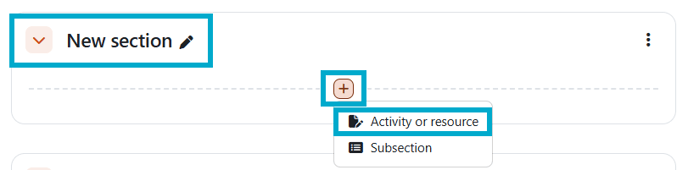
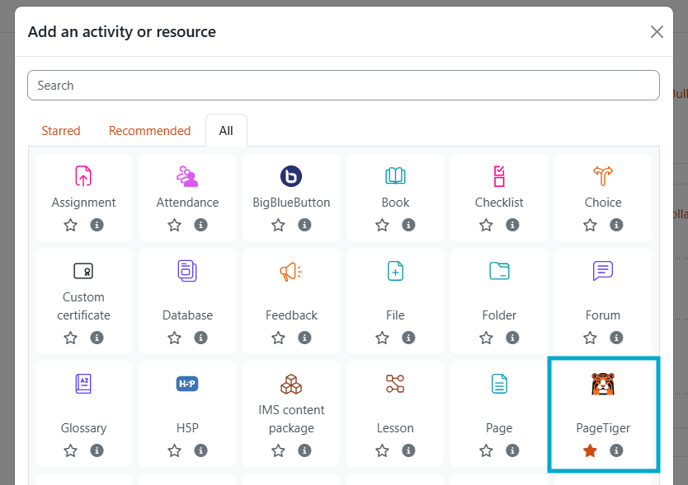
You will be presented with a selection of options to choose from.
- Select the PageTiger LTI integration you have previously configured.
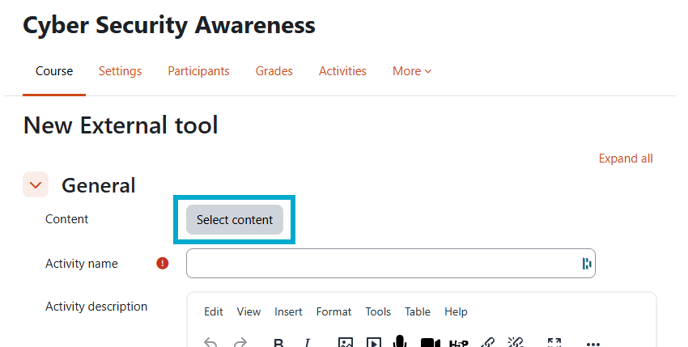
- Select the 'Content' button to return a list of PageTiger documents that contain an assessment.
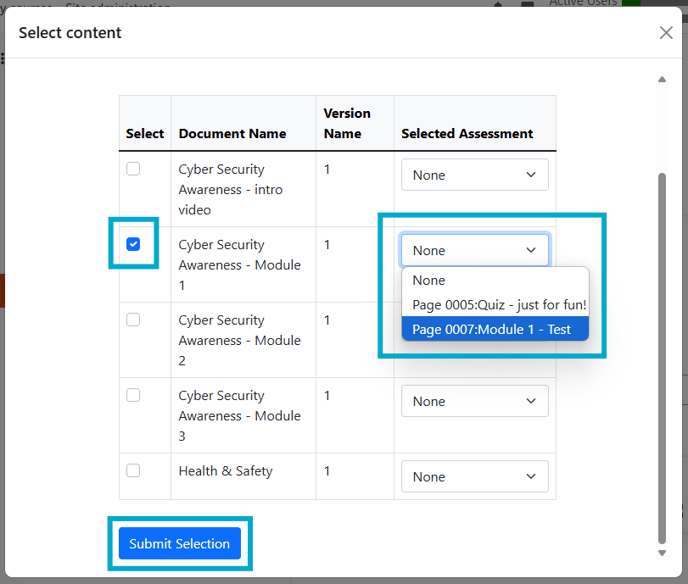
- From here, you can choose which document and assessment you wish to add.
- Select the 'Submit Selection' button to confirm your selection.
Most LMS platforms only allow for a single assessment per activity when using LTI.
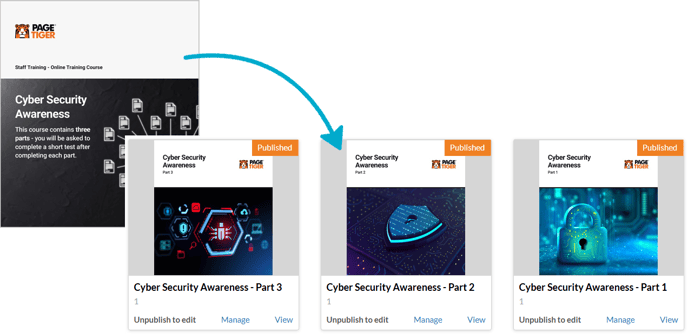
To support this we recommend breaking your content into smaller documents, with an assessment per document. This will allow focused knowledge checks that integrate seamlessly with the gradebook in the LMS, and provide a smoother more manageable learner journey.
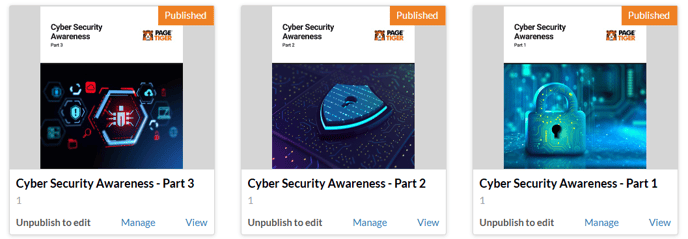
If your existing documents contain multiple assessments, and you want them both to feed to the LMS, its a good indicator that you should split that document into two activities.
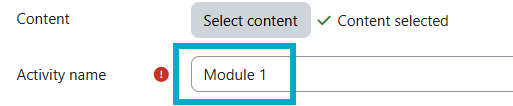
- The 'Activity name' will be automatically populated, but can be amended if needed.
- Complete the rest of the activity and course details as required.
Example
Here's how a PageTiger document will look once enabled in an LMS course.