
Can I save a document and print it out?
Saving and Exiting
As you work on your document, any changes will be retained when you leave TigerDesigner, so you won't find a 'Save' button when exiting.
Always remember to save if you are working in a pop-up text editor - for example a Text panel, More Information pop-up or Assessment.
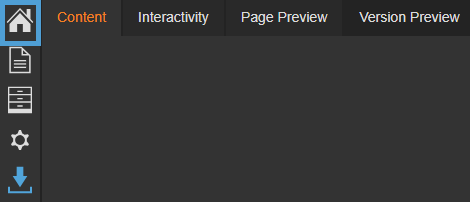
- Select the home icon from the left-hand menu.
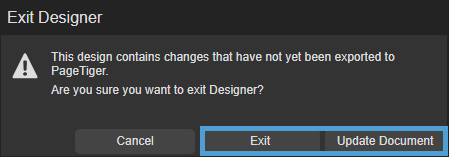
- Cancel
Select this option to close the pop-up box and remain in TigerDesigner. - Exit
Leave TigerDesigner without exporting your changes (don't worry, they will still be saved!) - Update Document
Leave TigerDesigner and update your document so the changes are 'pulled through', making them visible when the document is viewed outside of TigerDesigner.
Exporting for print
It is possible to export a PDF copy of the design of your document so it can be printed.
- Select the blue arrow found in the left-hand menu.
- Select 'Export to PDF'.
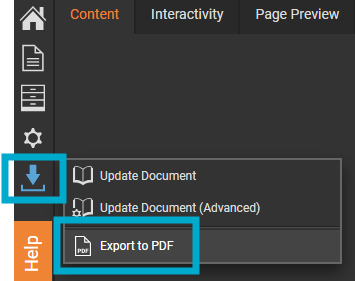
The PDF will contain the design of your document only - any interactive elements (such as a More Information pop up or video) won't be available in the PDF, as they require an internet connection to work.
-
Select a layout that mimics standard paper sizes (like A4 or A5) if you plan to print the document.
-
Check margins and spacing to make sure nothing essential is too close to the edge, as this could risk getting cut off when printed.
-
Use high-resolution images for the best results in print.