
- PageTiger User Guide
- Document Settings
- Expected Visitor Lists
How to create an Expected Visitor List
Find out if your document has reached the right people with an Expected Visitor List. Simply upload a list of email addresses and set your document to use a Reader Login or SSO security rule. You’ll then be able to instantly track see who has engaged with your document and who hasn’t!
-
Select ‘Documents’ from the main menu.
-
Select ‘Settings’ followed by ‘Expected Visitors’.
-
Select the ‘Add’ button.
-
Start by entering a name for the Expected Visitor List in the 'Name' field.
Make sure the name is clear and logical, so you know who is included in the EVL. For example - 'Sales Team' or 'London Branch'.
-
Select the 'Save' button to see more options.
-
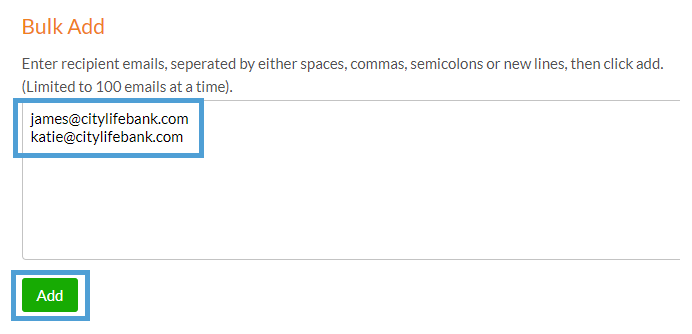
Paste the email addresses that you wish to add to the list into the 'Bulk Add' section, followed by 'Add'.
Up to 100 email address can be added at a time, and must be separated by a space, comma, semicolon or new line.
-
Select the ‘Save’ button to create and save the list.
It's also possible to upload a list of email addresses using Import > Choose File.
Expected Visitor Lists and Security Rules
Secure your content with precision by combining a Expected Visitor List (EVL) with a Reader Login or SSO security rule.
When a user logs in, their email is compared to the EVL - those included will be allowed to view the document, any anyone not on the list will be denied access.
Find out more about pairing an Expected Visitor List with a Security Rule.