- PageTiger User Guide
- Document Settings
- Security Rules
Enable/Disable Search Engines
The Search Engine security rule allows you to control whether your PageTiger documents can be indexed by search engines such as Google or Bing.
By enabling search engines, your document becomes discoverable through search results, making it accessible to a wider public audience. Disabling it, keeps the document hidden from search engine listings, which is ideal for protecting sensitive or internal content.
This setting gives you the flexibility to choose the level of visibility that best suits your document’s purpose.
Enabling search engines is a good choice if you have a promotional document that you'd like to be publicly accessible to anyone. However, it should never be used for internal documents, such as employee manuals or interview invitations.
-
Select ‘Documents’ from the main menu.
-
Select ‘Settings’ followed by ‘Security Rules’.
-
Select the ‘Add’ button.
-
Start by entering a name for the Security Rules in the 'Details'.
Make sure the name is clear and recognisable so you know which Security Rule you're looking for when you wish to apply it to a document.
-
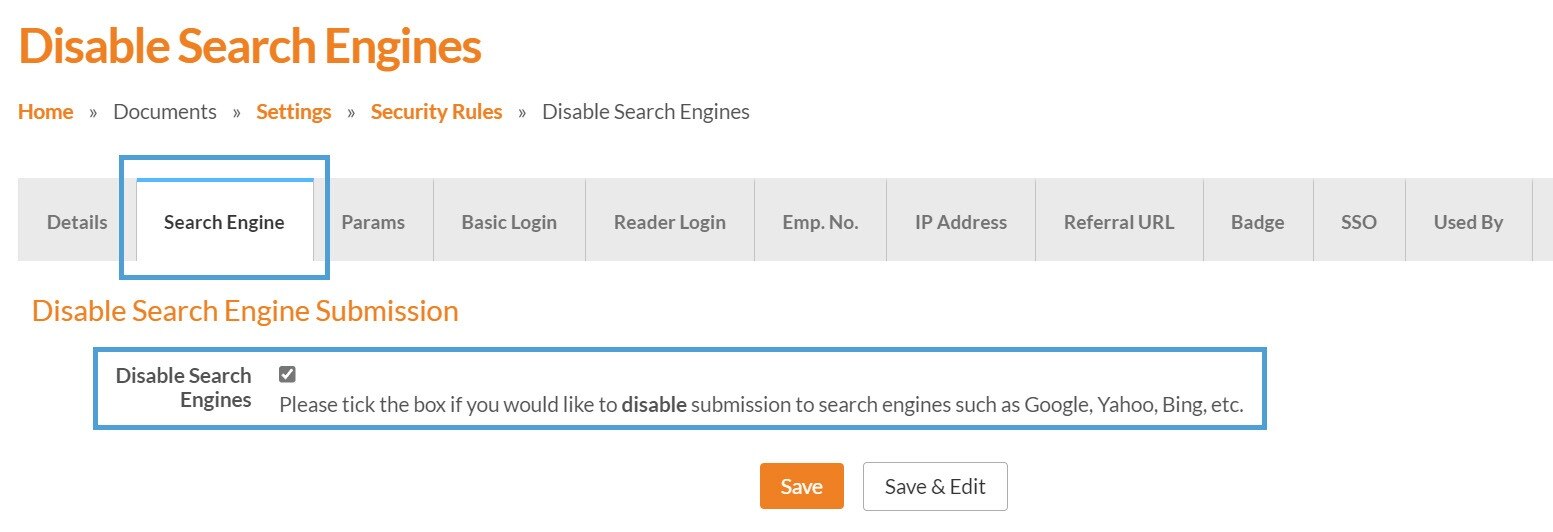
Select the 'Search Engines' tab.
-
The 'Disable Search Engines' checkbox will then display.
- Select the checkbox to disable search engines and keep your document hidden from search results.
- Leave the checkbox unticked if you would like to enable search engines, and make your document discoverable through search results.