
Find out what your visitors are thinking and collate their views and feedback with an interactive poll. They're a simple way to increase engagement, allowing your visitors to respond with minimal effort.
A poll is used to ask people their opinion about something, usually in order to find out how popular something is or what people intend to do in the future. They're also visually appealing, meaning they’ll more likely be noticed and responded to.
- Navigate to a document, and select 'Design' for the version you wish to work on.
- Select the ‘Interactivity’ tab at the top of the page.
-
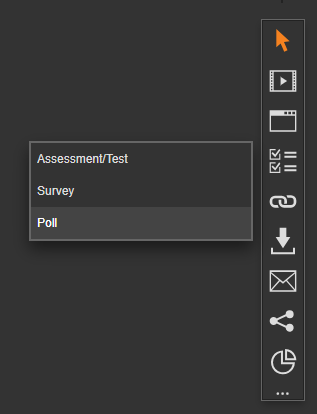
Select the 'Assessments' type from the Interactivity palette.
-
Select the 'Poll' option.
-
Click and drag out an area on your page - this is the first poll answer.
-
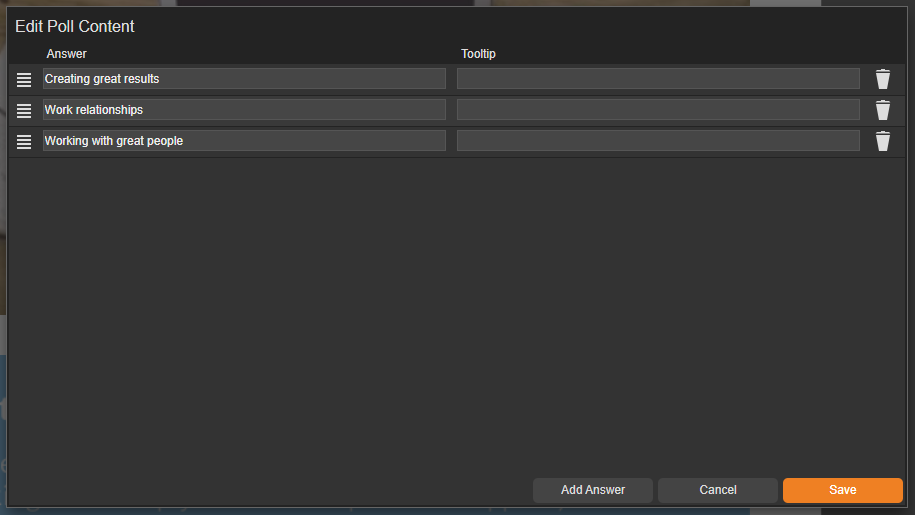
The 'Edit Poll Content' box will then open ready for you to type the poll answer into the 'Answer' field.
-
Select the 'Add Answer' button to add another poll answer.
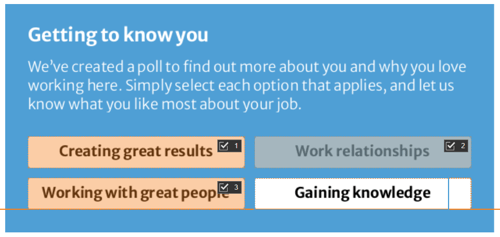
- Click and drag out another box to add the next poll answer.
-
The 'Edit Poll Content' box will open again ready for you to type the poll answer into the 'Answer' field.
-
Continue these steps until you have added all of the required poll answers.
To ensure single-page mode is supported when viewing a document, poll answers must all be on the same page and cannot be added across double-page spreads.
Settings
When a module is selected, the Settings palette will become active ready for you to begin choosing any settings, such as the poll bar colour and if visitors can vote multiple times.
Name
The 'Name' field is set by default, but it's important to update it to something unique that reflects the interactivity - for example, 'Poll - What do you like most about your job?'.
Descriptive names make it easier to identify the interactivity used in your document, which is particularly helpful if you're using lots of the same module type.
Heading
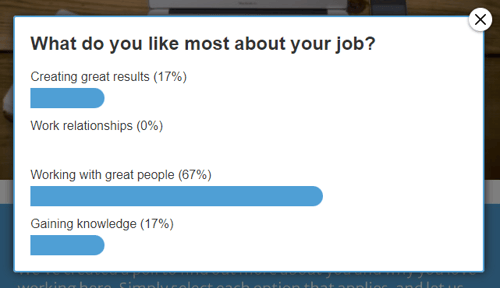
The heading is the text that will be displayed to the visitor once they have submitted their poll answer.
Poll Bar Colour
The 'Poll Bar Colour ' field allows you to set the colour of your bar that displays once a poll answer has been selected
Vote Once
The 'Vote Once' checkbox is selected by default, so visitors can only vote once - it's a great option if you want to prevent the poll results from being skewed. Unselecting this option will allow the visitors to vote multiple times.
Accessibility
Focus Outline Colour
This option can be used if Accessibility has been enabled for your document, and sets the colour of the outline that displays around the piece of interactivity being viewed.
Popup Style
Border Colour
Adds a border around the poll pop-up box. Use this field to specify the colour that you want the border to be.
Border Size
Use the 'Border Size' field to specify the width of the border around the edge of the poll pop-up box. Enter a numerical value to set the border width - the higher the value, the thicker the border.
Back Colour
The 'Back Colour' field allows you to set the background colour of the poll pop-up box - select from the colour picker, enter a HEX code, or choose from your brand colours. Think about the choice of colour - it can reflect your brand personality, as well as evoke emotions or draw attention to content.
Margin Size
Margins create breathing space by adding a clear separation between the content of the poll and the poll pop-up box. Enter a numerical value to set the margin size - the higher the value, the larger the margin.
Max Width & Max Height
Adjust the width and height of the poll pop-up box. The size is measured in pts.
Poll Answer Position
Position X & Y
Adjust the position of the clickable area for the poll answer that is currently selected. 'X' sets the position of the left edge and 'Y' sets the top edge of the poll Answer.
Width & Height
Adjust the width and height of the clickable area for the poll answer that is currently selected. The size is measured in pts.
Link to Panel
Link a poll answer to a panel in your Document. Once linked, the Poll Answer will move with the panel if it is repositioned or resized.
Want to hide the answers to a poll?
If you would prefer not to show the poll results to your visitors, Automation can be used to hide them. Find out more about Polls and Automation.