
Need to share key resources? With the ‘Download a File’ module, visitors can instantly grab what matters most - whether it's reports, contracts, or guides. By making downloads easy, you improve their experience and keep information accessible.
The maximum file size is 1024MB and the following file types can be downloaded:
- PDF file (.pdf)
- JPEG image (.jpg, .pjpeg .jpeg)
- PowerPoint file (.ppt, .pps, .ppa, .pptt, .ppsx)
- Excel file (.xls, .xla, .xlsx)
- Word document (.doc, .docx)
- Navigate to a document, and select 'Design' for the version you wish to work on.
- Select the ‘Interactivity’ tab at the top of the page.
-
Select the ‘Download’ module type from the ‘Add Interactivity' palette.
-
Select your chosen file type from the available list.
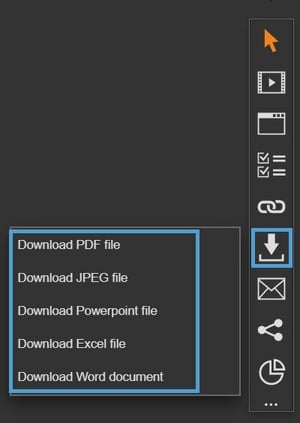
-
Click and drag out the area to add to your page - this is the clickable area that the visitor will select to download the file.
-
Select the 'Upload' button to upload a new file.
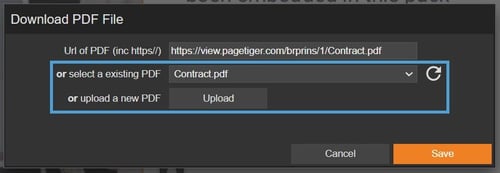
-
Select 'Save' to save your changes.
Files already uploaded to the Resources Manager can be picked from the ‘Select an existing’ drop-down list.
Settings
Click on a module already placed on your page to activate the Settings palette. This allows you to configure options like the download target and module description.
Name
The 'Name' field is set by default, but it's important to update it to something unique that reflects the interactivity - for example, 'Link to PageTiger website' as it will be shown in the Analytics of you document.
Descriptive names make it easier to identify the interactivity used in your document, which is particularly helpful if you're using lots of the same module type.
Description
The text entered here will display when a user hovers their cursor over a module. It is also read out by a screen reader when a document is viewed in accessible mode.
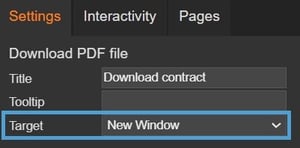
Target
Specify if you would like the file to open/download in a new window or the current one (which is where they are viewing your document).
To prevent files from interrupting the document being viewed, use the 'New Window' option so they open/download in a separate tab.
Focus Outline Colour
This option can be used if Accessibility has been enabled for your document, and sets the colour of the outline that displays around the piece of interactivity being viewed.
Position X & Y
Adjust the position of the clickable area. 'X' sets the position of the left edge and 'Y' sets the top edge.
Width & Height
Adjust the width and height of the clickable area. The size is measured in pts.
Link to Panel
Link the module to a Panel in your document. Once linked, the module will move with the Panel if it is repositioned or resized.