
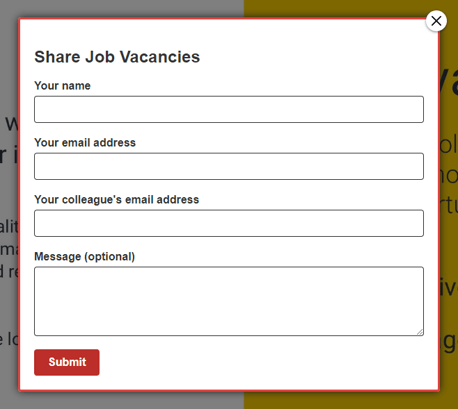
Spread the word about your interactive documents! Visitors to your document can complete a simple pre-configured form and email it to a friend or colleague who may find it interesting. It's a simple and effective way to encourage more people to view your content.
There are two available modules for forwarding your document. The only difference between them is the specified email address field:
-
Forward to a colleague - ‘Your colleague’s email address’.
-
Forward to a friend - ‘Your friend’s email address’.
- Navigate to a document, and select 'Design' for the version you wish to work on.
- Select the ‘Interactivity’ tab at the top of the page.
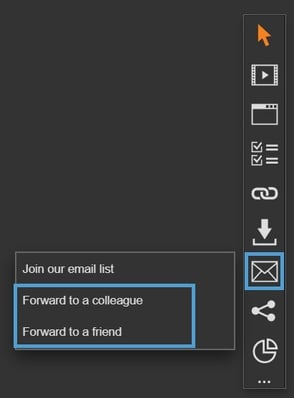
- Select the ‘Mailing’ module type from the ‘Add Interactivity' palette.
-
Select the 'Forward to a Colleague/Friend’ option.
-
Click and drag out the area to add to your page - this is the clickable area that the visitor will select to forward your document to a colleague or friend.
-
No other steps are required!
This module type uses a pre-configured form, so all you need to do is add it to your page - the form will open in a pop-up box when a visitor selects the clickable area.
Settings
Click on a module already placed on your page to activate the Settings palette. This allows you to configure options like link heading and module description.
Name
The 'Name' field is set by default, but it's important to update it to something unique that reflects the interactivity - for example, 'Forward document to a friend', as it will be shown in the Analytics of you document.
Descriptive names make it easier to identify the interactivity used in your document, which is particularly helpful if you're using lots of the same module type.
Heading
The heading is the text that will be displayed to the visitor when they view the module in your document.
Description
The text entered here will display when a user hovers their cursor over a module. It is also read out by a screen reader when a document is viewed in accessible mode.
Focus Outline Colour
This option can be used if Accessibility has been enabled for your document, and sets the colour of the outline that displays around the piece of interactivity being viewed.
Border Colour
A border adds a keyline around the pop-up box that the form will display in - it can be used as a way to draw attention to your content. Use this field to specify the colour of the border.
Border Size
Use the 'Border Size' field to specify the width of the border around the pop-up box that the form will display in. Enter a numerical value to set the border width - the higher the value, the thicker the border.
Back Colour
The 'Back Colour' field allows you to set a background colour for the pop-up box that the form will display in - select from the colour picker, enter a HEX code, or choose from your brand colours.
Margin Size
Margins create breathing space by adding a separation between the form content and the pop-up box border. Enter a numerical value to set the margin size - the higher the value, the larger the margin.
Max Width & Height
Adjust the width and height of the form pop-up box. Aim for no larger than 900 to ensure the pop-up box is viewable on different monitor sides.
Disable Close
This option can be selected if you want to prevent the visitor from closing the pop-up box.
Be mindful when using this option, to avoid causing frustration to readers as it can prevent them from navigating further in your document.
Position X & Y
Adjust the position of the clickable area. 'X' sets the position of the left edge and 'Y' sets the top edge.
Width & Height
Adjust the width and height of the clickable area. The size is measured in pts.
Link to Panel
Link the module to a Panel in your document. Once linked, the module will move with the Panel if it is repositioned or resized.
What happens next?
No further configuration is required for this type of module!
When your visitors select the clickable area in your document they will be prompted to enter their name and email address, along with the recipients email address and a message of their choice.
Pressing the submit button will fire off an email to the recipient.
