Use this guide to speed up common actions like formatting text, arranging panels and managing your designs, so you can work more efficiently while getting the most value from the platform.
Shortcuts in TigerDesigner
Using Text
| Press this key (Windows) | Press this key (Mac) |
To do this action |
| Ctrl + A | Command-A | Select all text |
| Ctrl + C | Command-C | Copy the selected text |
| Ctrl + Shift + V | Command-V | Paste as plain text |
| Ctrl + X | Command-X | Cut the selected text |
| Ctrl + Z | Command-Z | Undo the last typing |
| Ctrl + Y | Shift-Command-Z | Redo typing that was undone |
| Enter | Enter | Add a new paragraph with paragraph spacing |
| Shift + Enter | Up arrow (⇧) + Enter | Add a new line with no paragraph spacing |
Designing
| Press this key (Windows) |
Press this key (Mac) |
To do this action |
| Arrow keys | Arrow keys | Nudge the position of a panel |
| Shift + arrow keys | Up arrow (⇧) + arrow keys | Move the position of a panel by 10 pixels |
| CTRL + drag panel | Command + drag panel | Move a panel without snapping to the grid |
| Select panel + hold down CTRL + select further panels | Command + click items | Select multiple panels |
| Click and drag over more than one panel | Click + drag over more than one panel | Select multiple panels |
| Ctrl + Z | Command + Z |
Partially implemented to undo most panel actions, such as moving a panel. |
| Ctrl + Y | Command + Y |
Partially implemented to redo most panel actions, such as moving a panel. |
Saving & Exiting TigerDesigner
Saving
Design changes, such as panel position and settings, will save as you go.
However, when working in a pop-up editor - such as a Text or List panel, or a More Information or Assessment module - the 'Save' button should be selected to keep the changes.
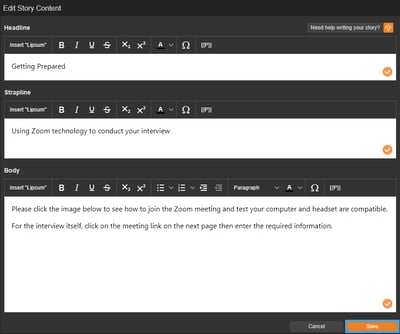
Save regularly so your hard work doesn't go to waste!
Exiting
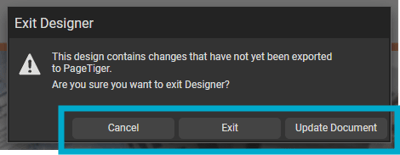
When you are ready to exit TigerDesigner, select the 'Home' icon in top-left menu.
| Option | Action |
| Cancel | Remain in TigerDesigner |
| Exit | Leave TigerDesigner without exporting your changes (don't worry, they will still be saved!) |
| Update Document | Leave TigerDesigner and 'pull through' the latest version, so it can be seen when you view the document outside of TigerDesigner. |