
COMING SOON
Before you can enable a PageTiger document in an LMS course, an LTI 1.3 integration will need to be set up. This configuration is managed between our Support team and typically your LMS administrator or IT team, as it involves entering specific details into your LMS platform.
Once the setup is complete, a new security rule will be available in your PageTiger account, which can be applied to your documents, enabling a seamless and secure connection to your LMS platform.
LTI Platform Settings
The table below provides you with the details needed to begin setting up an LTI 1.3 configuration in your LMS.
| Tool/Launch URL | https://view.pagetiger.com/api/v1/lti/lti-launch |
| Public Keyset URL | https://view.pagetiger.com/api/v1/lti/jwks |
| Initiate Login URL | https://view.pagetiger.com/api/v1/lti/lti-login-initiate |
| Redirection URLs | https://view.pagetiger.com/api/v1/lti/lti-launch https://view.pagetiger.com/api/v1/lti/jwks https://view.pagetiger.com/api/v1/lti/lti-login-initiate https://view.pagetiger.com |
- Log into your LMS platform to get started.
The following steps are specific to Moodle. Since each LMS handles LTI 1.3 configuration slightly differently, it's best to consult your platform’s documentation for more detailed guidance.
- Select 'Site Administration' from the main menu.
- Select the 'Plugins' tab, followed by 'Manage Tools'.
- Choose the 'configure a tool manually' option to get started.
- Enter the details in the above table into their relative fields.
- The following fields must be set up as -
- Tool configuration usage - 'Show as preconfigured tool when adding an external tool'.
- Supports Deep Linking (Content-Item Message) - checkbox is selected.
- IMS LTI Assignment and Grade Services - 'Use this service for grade sync only'.
-
IMS LTI Names and Role Provisioning - 'Do not use this service'.
-
Tool Settings - 'Do not use this service'.
-
Share launcher's name with tool - 'Always'.
-
Share launcher's email with tool - 'Always'.
- Accept grades from the tool - 'As specified in Deep Linking definition of Delegate to teacher'.
-
We advise that the following field is set as -
- Default launch container - 'Embed, without blocks'
Right-click and select 'open image in new tab' to view larger
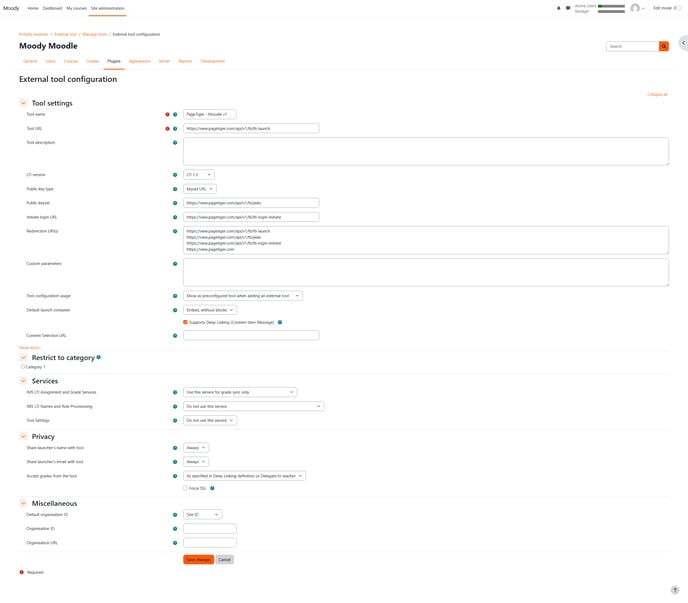
- Select the 'Save changes' button to save.
- The new tool will then be created and display on the 'Manage Tools' screen.
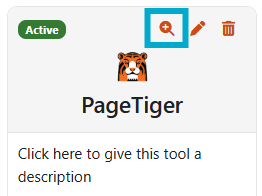
- Select the magnifying glass to view the tool configuration details.
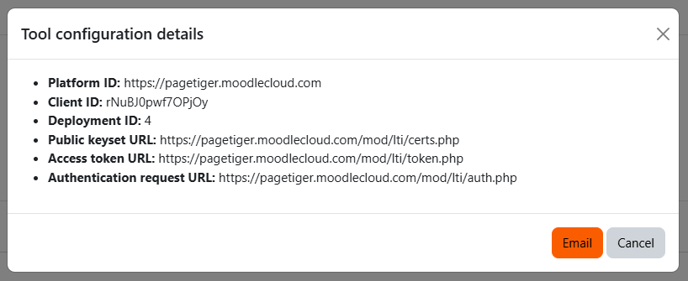
To help us complete the LTI configuration on our end, please provide our Support team with the following tool configuration details.
- Client ID
- Auth URL/Authentication request URL
- Token URL/Access token URL
- Keyset URL/Public keyset URL
The above information is essential for setting up the integration correctly and ensuring everything functions smoothly within your LMS.
Once the configuration is complete, a new security rule will be created and shared to your account.
- Select the 'Security Rules' tab for your document.
- Choose the LTI security rule from the drop-down list and saved.
- Any documents that are published and have this security rule applied will now be available to enable in your LMS course.
Read more about enabling a PageTiger document in an LMS course.