
- Go to the SharePoint site and open the page you want to edit.
- Click 'Edit' (top right).
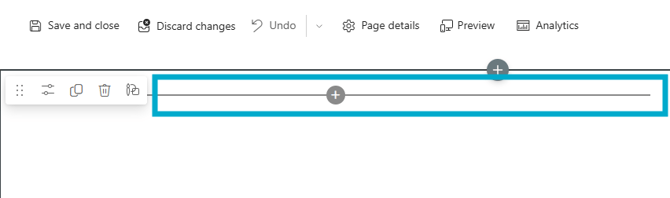
- Hover where you would like to add the document and select the plus icon (+) to add a new web part.
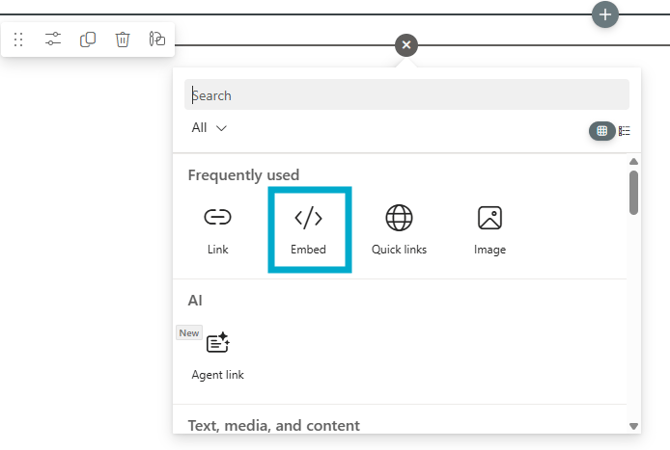
- Then select the 'Embed' option.
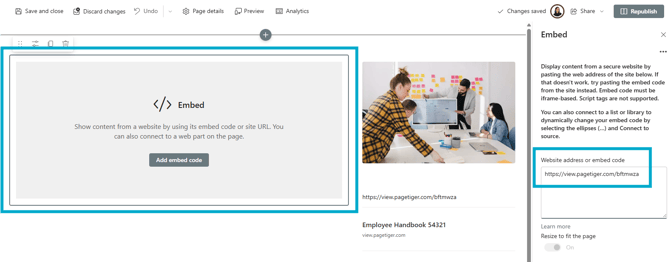
- Paste the URL of your PageTiger document into the 'Website address or Embed' code field.
If you see the below error, your SharePoint administrator will need to add view.pagetiger.com to the “Allow IFrame embedding” list in SharePoint.
"Embedding content from this website isn't allowed, but your admin can change this setting. They will need to add "view,pagetiger.com" to the list of sites that are allowed."
- Select 'Insert' and resize if needed.
- You can then republish or save, and the document will appear directly on your page!
Don't forget to turn on the 'Enable IFrame' option for your document if you would like to share it on a specific website. The option can be found on the 'Details' section of a document and is a simple checkbox.
We're continually working to enhance our security standards and are currently in the process of migrating accounts to include this option. If you don’t see it available on your document but would like to enable it, please reach out to our support team.