Why is the sound not playing on my auto-play video?
Much as we try, some media settings are controlled by the browser or device the user is using to view a document, and therefore fall outside of our control. This setup is in place to ensure that users have control over whether they're in an environment suitable for listening to audio on their device.
Can I download a previously uploaded video?
Yes! This is possible within the 'Resources Manager' area of a document.
-
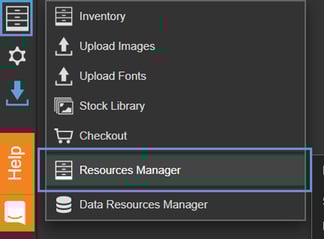
Select the 'Inventory' icon from the left-hand menu, followed by 'Resources Manager'.
-
Select the 'Copy' icon to copy the URL of the resource.

-
Paste the URL into a new tab.
-
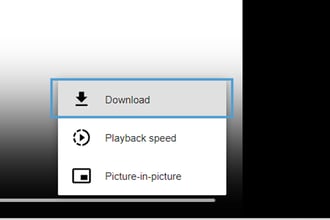
Either right-click to ‘Save Video As’ or select the three dots to ‘Download’.
-
Save the video to your computer and it’s ready to use!
Videos created using the Video Generator must not be downloaded, as the licensing terms agreed with our 'presenters/avatars' do not include usage outside of PageTiger.
Why is my video still showing the PageTiger video?
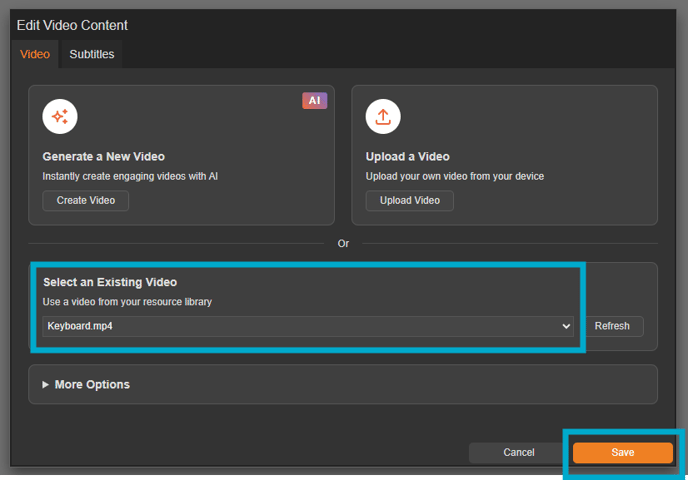
If the sample PageTiger video is playing in your video module, please ensure you have selected your chosen video file.
-
Click to edit the video module on your page.
-
Select the required video file from the ‘Select an Existing Video’ drop-down list.
- Remember to save!
Can I embed YouTube videos on page?
Unfortunately it is not possible to embed YouTube videos on-page; they can only be displayed in a pop-up box.
Automation can be used to play a YouTube video when a page loads using the ‘On Page Load’ option - read more about Automation and Videos.
How do I change the size of my video file on page?
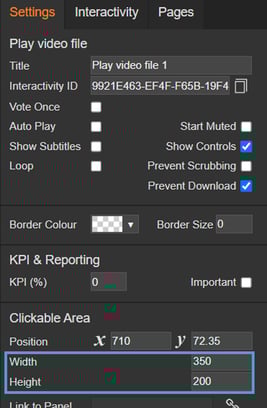
The Width and Height of a video can be altered to your desired size in the 'Settings' palette.
-
Click on the video module on your page to activate the Settings palette.
-
Enter the dimensions into the Width and Height fields.
-
The clickable area will then change to the dimensions entered.
The video will automatically resize to match its original proportions, so it won’t appear stretched or distorted.
How do I change the size of my pop-up video?
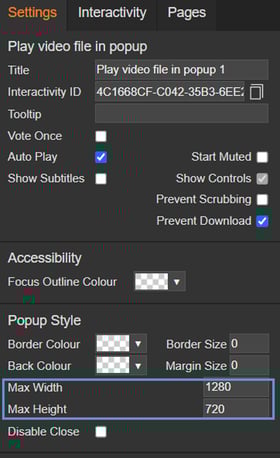
The Height and Width of your pop up interactivity can be changed using the 'Settings' palette.
-
Click on the video module on your page to activate the Settings palette.
-
Enter the dimensions into the Width and Height fields.
-
The pop up area will then change to the dimensions entered.
How do I add automation to videos?
Automation is a great way for your Interactivity to 'speak to each other', creating seamless transitions and more professional documents.
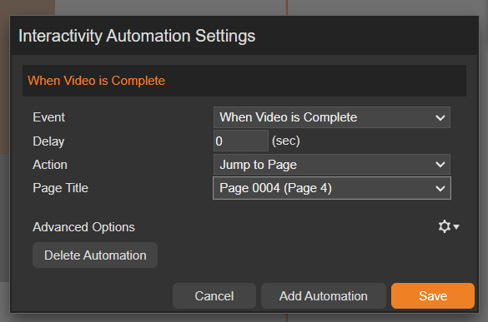
The below example demonstrates how to turn to the next page once a video has finished playing.
-
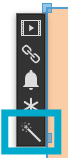
Click on the video module on your page, followed by the wand icon.
-
Select ‘Add Automation’ to set up the automation.
-
Choose ‘When Video is Complete’ as the Event.
-
Choose ‘Jump to Page’ as the Action.
-
Now choose which page to jump to.
Automations such as these can be added to any interactive module. It's a good idea to have a play around with different interactivities to see what is possible to automate from each.
Can I use a generated video to create a new video?
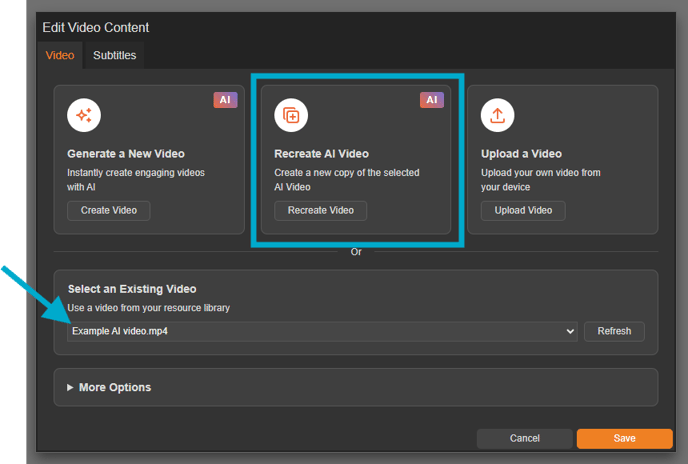
Yes! To duplicate a generated/AI video, first select the video module on your page. Then select the video from the 'Select an Existing Video' field and click the 'Recreate Video' button.
The generator will then open, allowing you to make edits - such as updating the script or changing the avatar - before clicking 'Generate' to create a copy.
The video script cannot be retrieved for deleted videos.
How many characters can I use for my AI video script?
- Essentials: 2,000 characters.
- Essentials Plus and Enterprise: 4,000 characters.
Once a video has finished generating, it is ‘complete’ and cannot be altered, however it is possible to use the ‘Create a Copy’ feature to create a new version of the video and alter the script. Instructions on how to do this can be found in the section above.
What is the video upload limit?
The maximum file size for video uploads is 500MB. If your file is larger than this, you can try compressing it. If you are still having trouble, contact support@pagetiger.com and the team can assist further.
Why are my video uploads failing?
If you have attempted to upload a video file and it has failed, the system will store this information, so the video will continue to fail if you try to upload it again. To resolve this, try changing the filename and re-uploading. If you are still having problems, contact support@pagetiger.com who will be able to assist further.
How can I delete a video?
If you wish to delete a video resource, open your 'Resources Manager', find the file and select the small bin icon.

If you want to delete a ‘Version’ resource, you need to edit the specific version that contains the file. Also, any files uploaded under ‘Document Resources’ will affect the video’s availability across all versions of that document - deleting the file there will make the video unavailable in every version.
How do I use the generator to create a video?
You can use our Video generator to create videos from scratch to use in your PageTiger document.
-
Select the 'Interactivity tab at the top of TigerDesigner.
-
Add a video module to your page.
-
Select the edit option for the module.
-
Click on the 'generate' button.
You will be presented with a pop up box ready to choose your avatar options and enter a scripts.
Read the full user guide page on how to use our Video Generator.
How do I add a presenter for my generated video?
A selection of presenters (or ‘avatars’) are available when you use the Video Generator to create video.
-
Enter a Title for the video – this will become the filename for the video.
-
Type or paste in the script that you want your presenter to read.
-
Use the slider to scroll through the catalogue of presenters and select the play icon to preview their voice.
-
Change their position in the video and zoomed in appearance.
-
Add a background colour or image.
-
Preview how the video will sound using the 'Play Script' button.
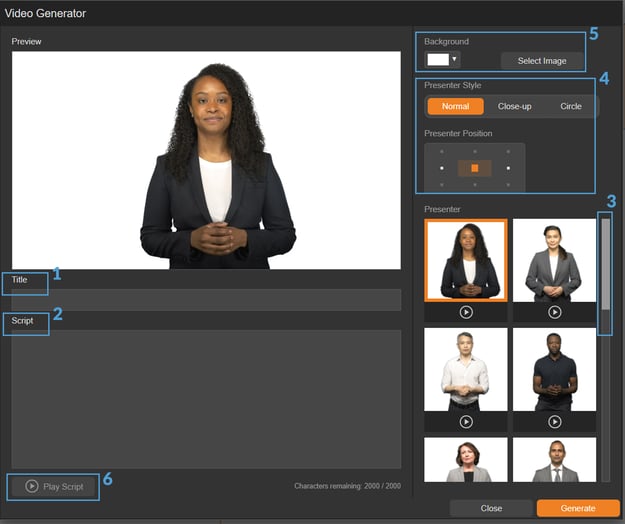
When you are finished and ready to generate your video, select the 'Generate' button. This may take a few minutes depending on the size of your video.
Why do the subtitles move position on my video?
The subtitles appear higher initially and move down when the time bar disappears or the cursor is moved off the video area. How much they 'move up' will vary dependent on the video size i.e. on smaller size videos it will appear to move more due to the height of the video.
Can I prevent users from skipping ahead in a video?
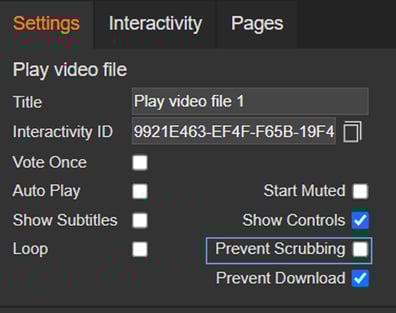
You can prevent someone from skipping through a video by selecting the video module on your page and ticking the 'Prevent Scrubbing' checkbox in the Settings palette.