
If you are an Account Owner, you have permission to manage the users on your account using self-service. This includes creating new users, updating their details, and deleting or reinstating them when required.
You can also request any user-related changes through your Customer Success Manager if you would prefer more support.
Delete a user
-
Select 'My Account' > 'Users'.
-
Select 'Edit' for the user you wish to delete.
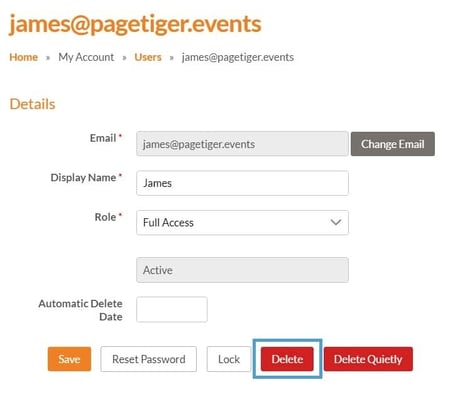
A new page will then display ready for you to delete the user.
-
Select the red 'Delete' button.
-
Select 'Save'.
What happens next?
The user will be automatically notified by email to let them know they have been deleted as a user on your account. This means they will no longer be able to log in or access your account. They will be unable to log in unless you reinstate their access.
Anything created by a deleted user will still be available in your account.
How to reinstate a deleted user
-
Select 'My Account'.
-
Select 'Users'.
-
Use the filter on the right-hand side to view 'Deleted Only'.
-
Select 'Edit' for the user you wish to reinstate.
-
Select 'Undelete'.
-
Select 'Save'.

What happens next?
The user will be automatically notified by email to let them know they have been reinstated as a user on your account and can log in again.
The users previous password can be used, however you may prefer to generate a password reset email so they can create a new one and ensure their login details remain secure.