
As your document gets longer, navigation matters more. Make it easy for your readers to find what they need with the ‘Jump to page’ module. It can be used to add links to specific pages in your document, making it perfect for a contents page or a quick 'Back to Home' button.
- Navigate to a document, and select 'Design' for the version you wish to work on.
-
Select the ‘Interactivity’ tab at the top of the page.
-
Select the ‘Link’ module type from the ‘Add Interactivity' palette.
-
Select the 'Jump to a page within this version’ option.

-
Click and drag out the area to add to your page - this is the clickable area that the visitor will select to open the webpage.
-
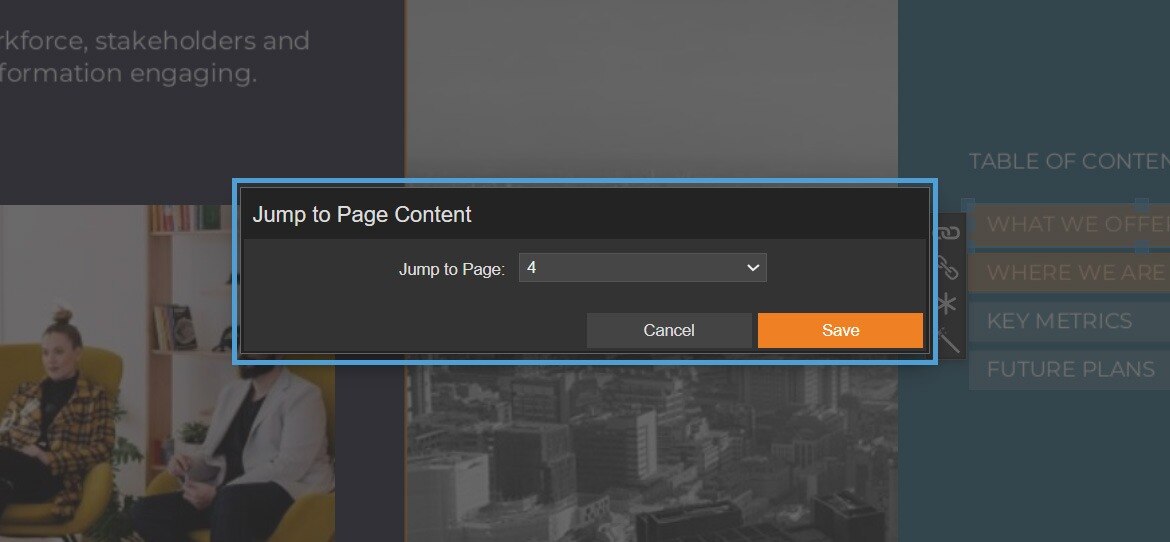
Select the page number that you would like to turn or 'jump to'.
-
Select 'Save'.
Settings
Click on a module already placed on your page to activate the Settings palette. This allows you to configure options like module description, and focus outline colour.
Name
The 'Name' field is set by default, but it's important to update it to something unique that reflects the interactivity - for example, 'Turn to page 4'' as it will be shown in the Analytics of you document.
Descriptive names make it easier to identify the interactivity used in your document, which is particularly helpful if you're using lots of the same module type.
Description
The text entered here will display when a user hovers their cursor over a module. It is also read out by a screen reader when a document is viewed in accessible mode.
Focus Outline Colour
This option can be used if Accessibility has been enabled for your document, and sets the colour of the outline that displays around the piece of interactivity being viewed.
Position X & Y
Adjust the position of the clickable area. 'X' sets the position of the left edge and 'Y' sets the top edge.
Adjust the width and height of the clickable area. The size is measured in pts.
Link to PanelLink the module to a Panel in your document. Once linked, the module will move with the Panel if it is repositioned or resized.
Use the 'Link to Panel' setting to quickly create a clickable contents page.
Example
James at ABC Invest has created a guidance document for managers.
He has created a contents page using a List panel and the 'Jump to a page' module to help managers quickly navigate to a required section. By linking each module to its respective List item, James can add a new item to the contents list when needed, without the 'Jump to a page' modules becoming out of sync.
